
Build MongoDB aggregation pipelines in a GUI
MongoDB's aggregation framework is one of the most powerful data-processing tools in any database — but writing correct pipelines in raw JSON is slow and error-prone. MQLens provides a stage-by-stage pipeline builder with on-demand results and an integrated explain plan so you can build, test, and optimize pipelines without leaving the app.
How the pipeline builder works
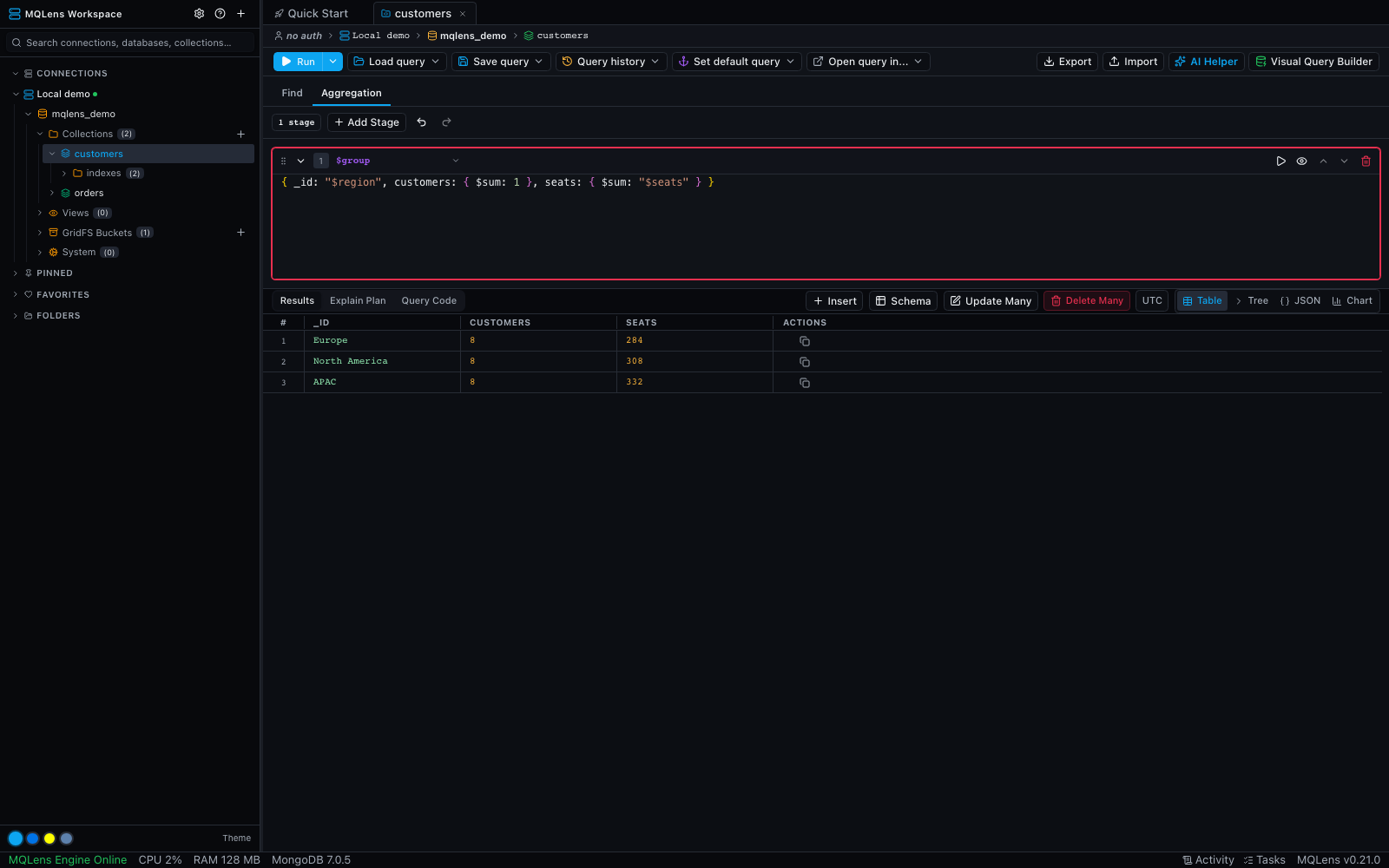
An aggregation pipeline is a sequence of stages. Documents flow from the collection into the first stage, are transformed, and the results flow into the next stage. In MQLens, each stage is a separate editor panel. You add stages one by one, give each stage a type (for example $match), and write the stage body as a JSON object. The app evaluates the pipeline up to and including the current stage each time you preview, so you always see the intermediate state of your data.
Adding your first stage: $match
Open a collection in MQLens and click the Aggregation tab. Click Add Stage and select $match from the stage-type dropdown. Enter your filter document:
{ "status": "active", "createdAt": { "$gte": { "$date": "2024-01-01T00:00:00Z" } } }Click the play button in the stage header (Run pipeline to stage 1). MQLens runs the pipeline up to this stage against the real collection and displays the first documents in the result pane. Add a $limit stage when you only need a small sample.
Placing a $match as the first stage is important: MongoDB can use an index on the matched fields when $match comes first, though MongoDB can also move eligible filters earlier during optimization.
Grouping data with $group
Add a second stage and choose $group. The _idfield defines the grouping key. Every other field uses an accumulator:
{
  "_id": "$region",
  "totalRevenue": { "$sum": "$amount" },
  "orderCount": { "$sum": 1 },
  "avgOrderValue": { "$avg": "$amount" }
}
Preview again to see the grouped result. Because you are building incrementally, you know the $match stage is correct before you add the grouping logic.
Joining collections with $lookup
$lookup performs a left-outer join between the pipeline documents and another collection. For a separate example using documents with a productId field, add $lookup before grouping and fill in the fields:
{
  "from": "products",
  "localField": "productId",
  "foreignField": "_id",
  "as": "productDetails"
}
For best performance, ensure the target collection has an index onforeignField (_id is always indexed, but custom foreign fields may not be). The explain plan (see below) will show you immediately whether the lookup is using an index.
MQLens also supports the pipeline form of $lookup for correlated subqueries — enter the $lookup body directly into the stage editor.
Shaping output with $project and $addFields
Use $project to include or exclude fields and compute new ones:
{
  "region": 1,
  "totalRevenue": 1,
  "avgOrderValue": { "$round": ["$avgOrderValue", 2] },
  "_id": 0
}
$addFields is similar but leaves all existing fields intact and only adds or overwrites the specified ones — useful when you want to compute a derived field without rewriting the whole projection.
Other commonly used stages in MQLens:
- $sort — sort documents by one or more fields. Add it before
$limitfor top-N queries. - $limit / $skip — paginate results. Best combined with a preceding
$sorton a unique field. - $unwind — flatten an array field into one document per element.
- $count — collapse the stream into a single document with a count field.
- $facet — run multiple sub-pipelines in parallel and combine their results.
Previewing results at each stage
The key workflow advantage of building pipelines in MQLens is the per-stage run control. Click the play button in a stage header to run all enabled stages up to that point and see their combined output. This lets you:
- Verify that a
$matchis returning the documents you expect before you add grouping logic. - Confirm that a
$lookupis joining correctly before you project away the join fields. - Catch shape mismatches (for example, a field named
productIdin one collection andproduct_idin another) early.
Getting an explain plan for the pipeline
Once you are happy with the pipeline's correctness, clickRun Explain in the dropdown beside Run. MQLens runs the pipeline withexecutionStats verbosity and renders a visual plan tree. The visual tree shows stage types and index details. Switch toRaw JSON for execution statistics. Look for:
- A COLLSCAN in the first stage — signals you need an index on the
$matchpredicate. - A high document count entering a
$sortwithout an IXSCAN — this triggers an expensive in-memory sort. - A
$lookupscanning many keys in the foreign collection — add an index onforeignField.
The visual plan tree makes it easy to see the flow: the collection scan or index scan at the bottom feeds into the first pipeline stage, and the execution statistics in the raw output help you find where the pipeline processes the most data.
Saving and re-running pipelines
MQLens saves open pipelines as part of your workspace session, so your work persists across sessions. You can also copy the full pipeline as a JSON array to paste into your application code or into mongosh.
Download MQLens free — a full aggregation pipeline builder with per-stage runs and visual explain plans, no Atlas subscription required.
6,303 release asset downloads
Windows
DetectedWindows 10 or later (x64)
Download the installer, run it, and launch MQLens from the Start menu.
macOS
DetectedmacOS 11 (Big Sur) or later
Download the .dmg, open it, and drag MQLens to your Applications folder.
Linux
DetectedUbuntu 20.04+, Fedora 36+, or equivalent (x64)
Debian/Ubuntu: install the .deb. Fedora/RHEL: install the .rpm. An AppImage is also available.